
What is Multifactor Authentication (MFA)?
- MFA is an authentication method used to verify a user’s identity by requiring that the user provide a single-use code (six-digit number), after entering username and password.
- What is the value of Multifactor Authentication?: MFA is a critical preventative measure that significantly reduces the risk of applications, such as e-mail, SharePoint, or D365, from being highjacked by bad actors.
- How will MFA work?: Access with MFA will be essentially the same as accessing applications now, except that instead of requiring just a username and password at the Okta screen, you will be required to provide a one-time code to complete the login. The code will be obtained from one of three sources you control (Okta smartphone app, SMS text, or phone number call back).
- How often will I be required to enter the code?: That depends on how you access an application.
- When logging directly into Okta to access applications you will be required to enter the code at most once per workday.
- When accessing Microsoft Office365 applications (after previously authenticating on that device) you will not be required to re-enter username, password, or the one-time code.
- If your password changes or you try to connect from a new device you will be prompted to enter a username, password, and code.
- How will I know when MFA is activated?: Peet's IT will let you know the date your account will get activated. After MFA is enabled on your account, at your first login, you will be asked to enroll in MFA
How to Get Started with your Zebra or Motorola Mobile Device MFA Setup
- Open up your Zebra Device to the Kiosk Scroll down to the SOTI Surf. Then Open Soti Surf
- With Soti Surf Opened click on the Bookmark/FastTab/Favorite called OKTA
- It will now ask you for your Okta/Email/Employee Username and Password to be entered. Click Sign In
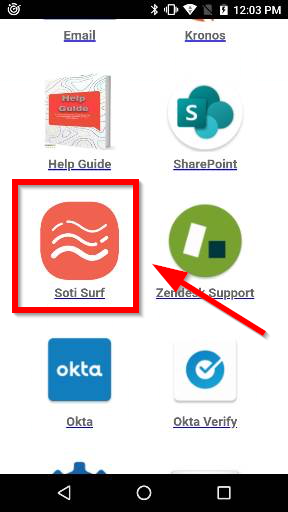
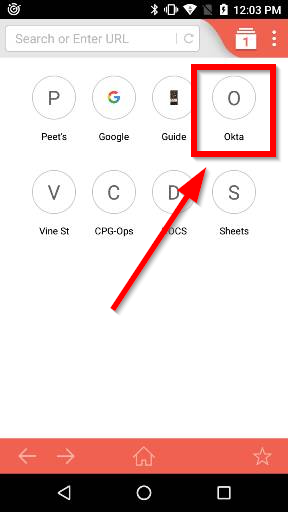
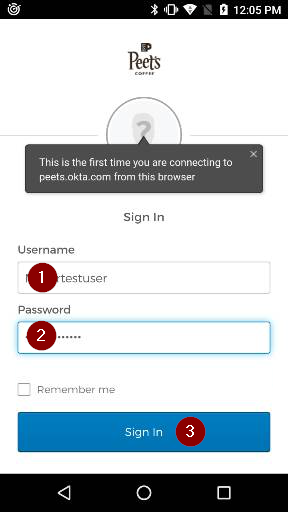
- Once Signed in, A MFA screen will appear to SETUP MFA.
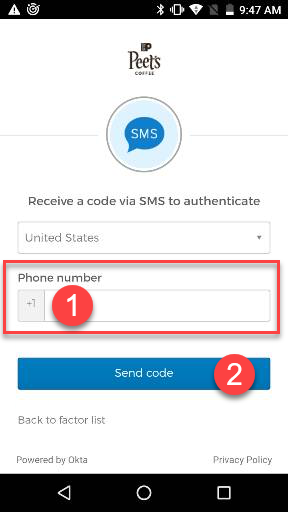
- Select SMS Authentication for Setup
- Note (You have the choice to choose any of the three options in the list but with the mobile device it is easier to use SMS(TEXT Message)).
- Enter the Phone Number you want your messages to go to and click Send Code
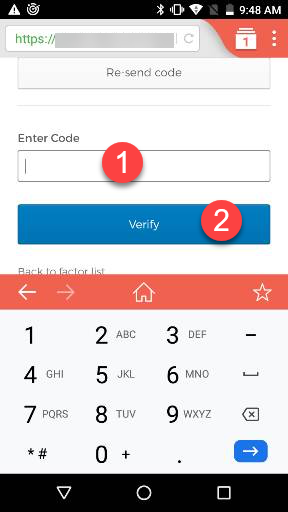
- The 6 digit authentication code will be texted to the phone number you selected. Enter the 6 digit authentication code into the "Enter Code" box. Click Verify
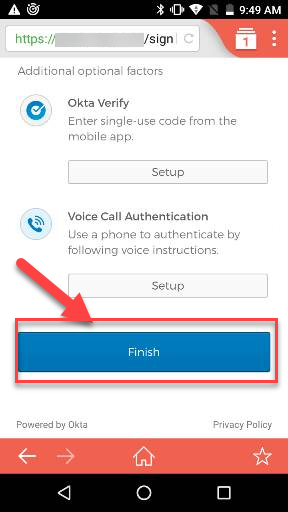
- Click Finish
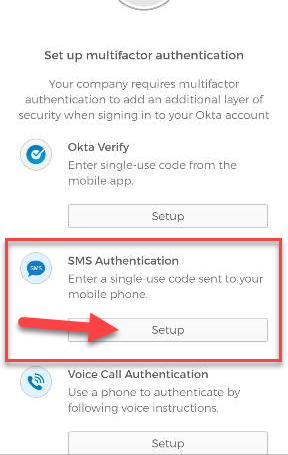
What are the 3 enrollment verification options and what do they mean
- Okta Verify: If Okta Verify is selected you will need to download the
Okta Verify App on your mobile device. Once installed, launch Okta
Verify and select add account, scan the QR code on your monitor
using your mobile device camera, and you will see your account
appear in the Okta Verify App. Enter the Okta Code from within the
Okta Verify App on the mobile device into the Okta Verify Enter
Code field, and select the Verify button. You will now be redirected
to your MFA page and a checkmark will be visible next to the Okta
Verify indicating you have successfully enrolled in the factor. - SMS Authentication: If SMS Authentication is selected you will be
instructed to input a mobile phone number where Okta can send
you a code via SMS. After you enter your phone number select
Send code. Your phone will receive a text message with a six-digit
code, which you will enter in the “Enter code” field, and then click
Verify. You will now be redirected to your MFA page and a checkmark will be visible next to SMS Authentication indicating you have successfully enrolled in the factor. - Voice Call Authentication: If Voice Call Authentication is selected,
you will be instructed to provide a phone number and select Call.
Okta uses this phone number to call you and provide you with a
numeric security code. Once you receive the security code,
populate the code in the “Enter Code” field, and select Verify. You
will now be redirected to your MFA page and a checkmark will be
visible next to Voice Call Authentication indicating you have
successfully enrolled in the factor.
HOW TO AUTHENTICATE (Once the other setup has been completed)
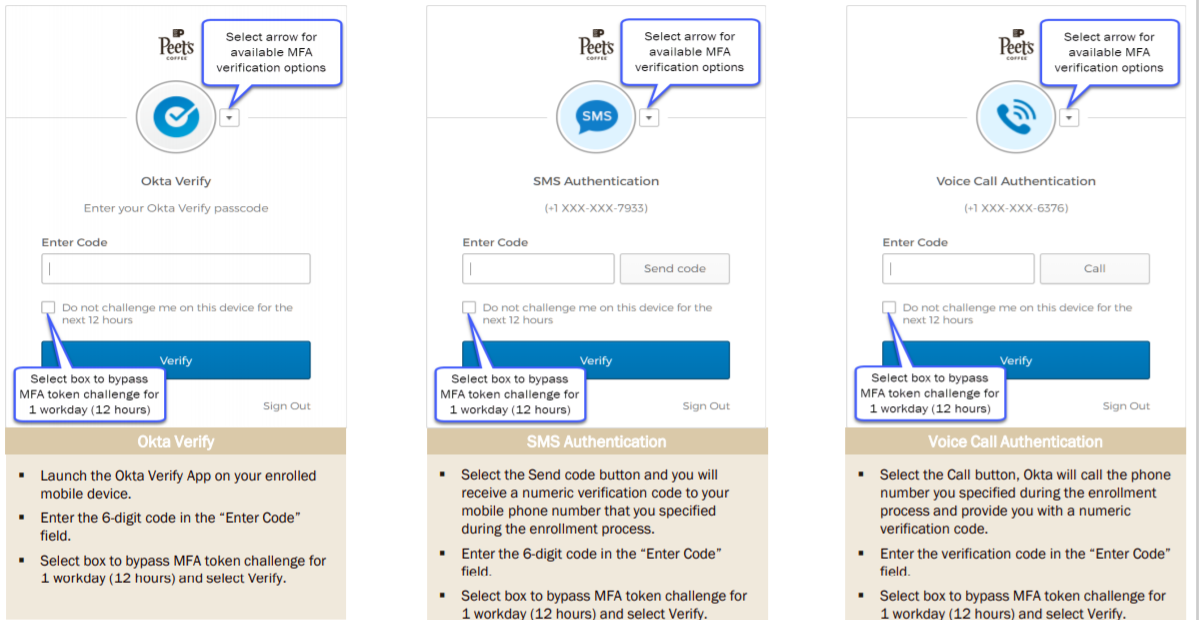
▪ After you sign in successfully at the Okta sign-in screen, you will be prompted to authenticate using the authentication code.
▪ Select one of the verification options you set up during the enrollment process by selecting the arrow to the right of the verification image, Okta
Verify, SMS Authentication, or Voice Call Authentication.
Who can I contact if I have questions?: Contact Peet's IT. We are here to help.
Comments
0 comments
Please sign in to leave a comment.