
Table of Contents
How to use Inventory View
How to Manage your Inventory within the Inventory View Option
Begin your Inventory Movement by selecting the Inventory option on the Main Menu
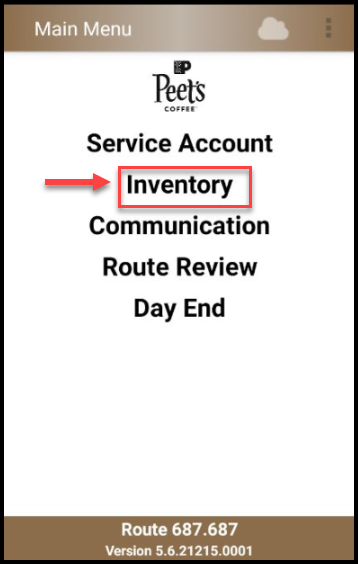
How to use Inventory View
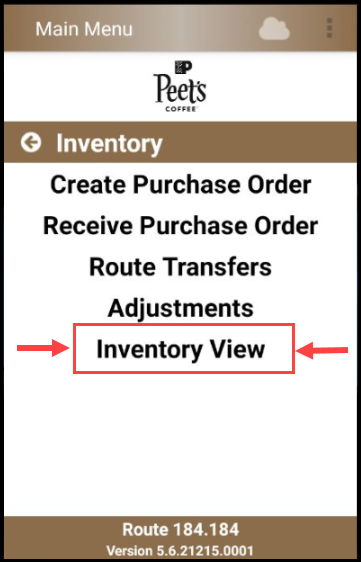
Inventory View is used to view your current inventory in your truck and in your warehouse*
*(Warehouse is defined as your storage unit/individual warehouse)
NOTE: For those routes in a Central Warehouse, the Central Warehouse Inventory is still located under the Truck Inventory option.
Once you select Inventory View, your Truck Inventory is shown by default.
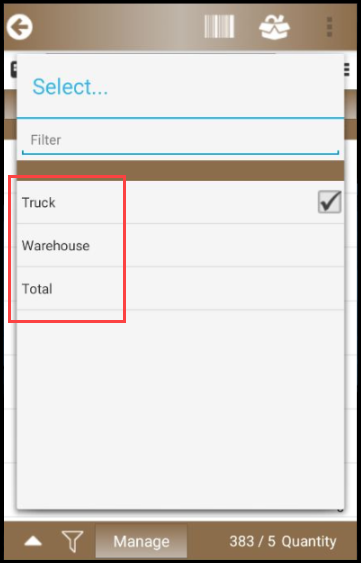
There are 3 options in the Inventory View menu. Truck, Warehouse*, and Total Inventory as the combined inventory.
To switch between Inventory views select the header that shows "Truck" as shown below in Image 1. Then select your desired inventory view as shown in Image 2
Image 1 Image 2
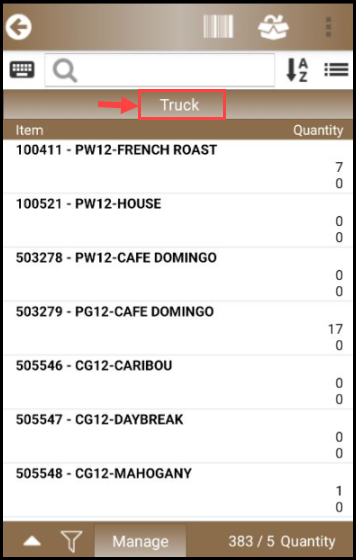
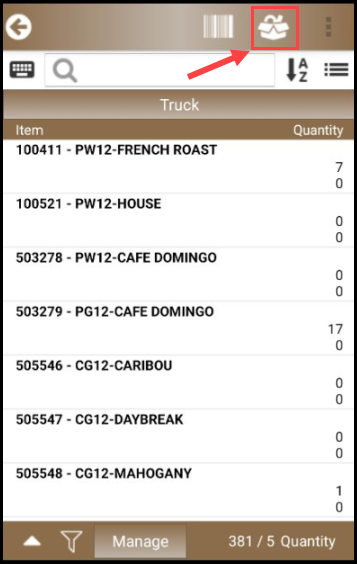
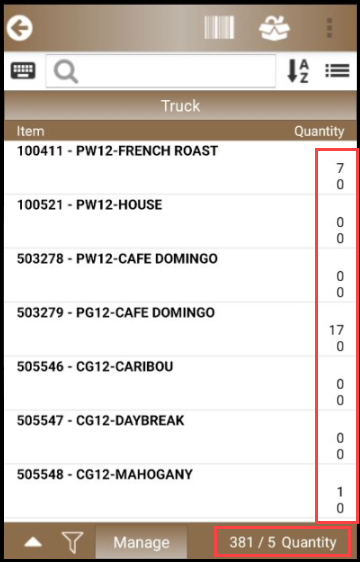
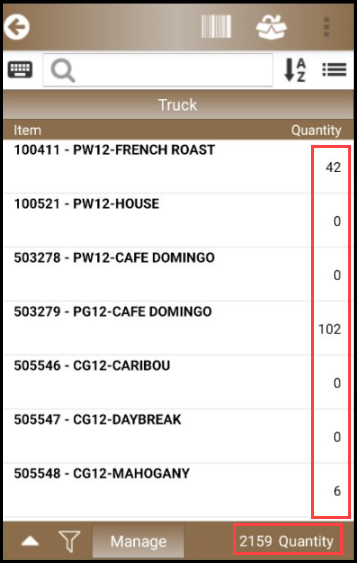
At the top of the Inventory View page, there is an image of an open box see Image 1. Select the image to change the Unit of Measure that is displayed for your inventory, see Image 2.
Image 1 Image 2
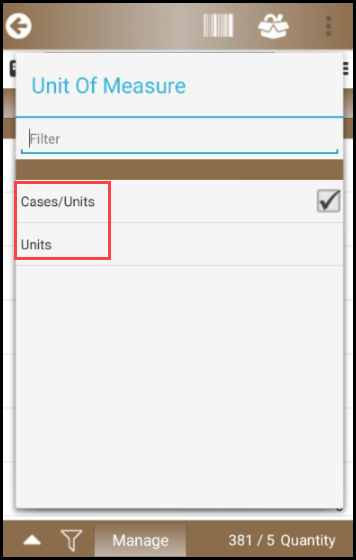
CASES/UNITS UNITS
How to Manage your Inventory within the Inventory View Option
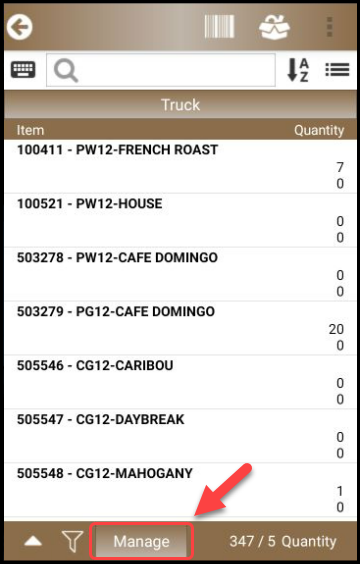
Select Manage at the bottom of the Inventory View page
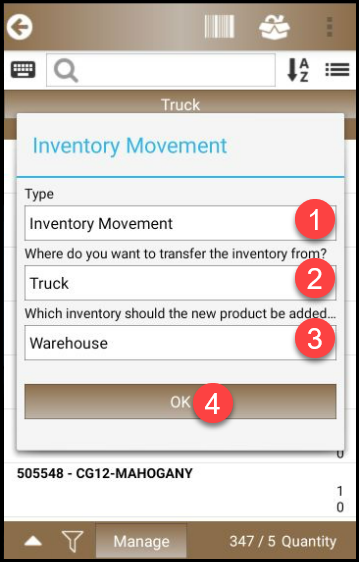
1. Confirm Inventory Movement is Selected under Type.
2. Select the location of the desired Inventory is transferred from
3. Select the location the desired Inventory is being transferred to.
4. Select OK
For this demonstration, we are going to be selecting inventory from the Truck to the Warehouse as shown below
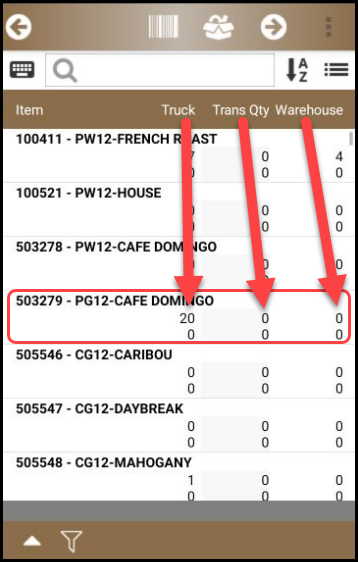
For this demonstration, we are using item- 503279-PG12-Cafe Domingo starting with 20 cases in the Truck Inventory and transferring 5 cases from the Truck inventory to our Warehouse*/Storage Unit Inventory. Our warehouse/storage unit inventory currently states we have zero as shown below.
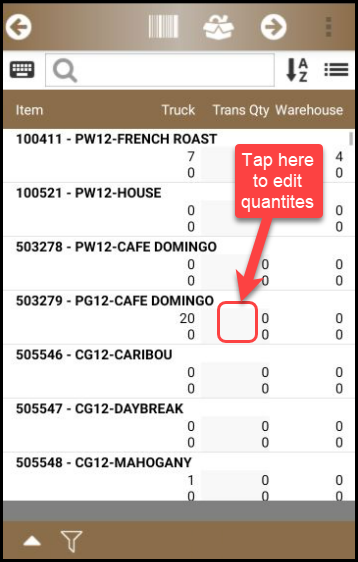
Select the numbers under the Trans Qty column to set the quantities of items to be sent to your Warehouse*/Storage Unit Inventory as shown below
Once the item is selected a new option showing Cases and Eaches will appear to enter the desired quantities that you would like to transfer. In the image below we are Transferring 5 cases to the Warehouse* Inventory
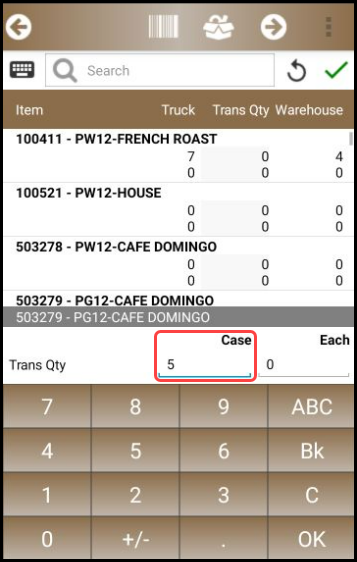
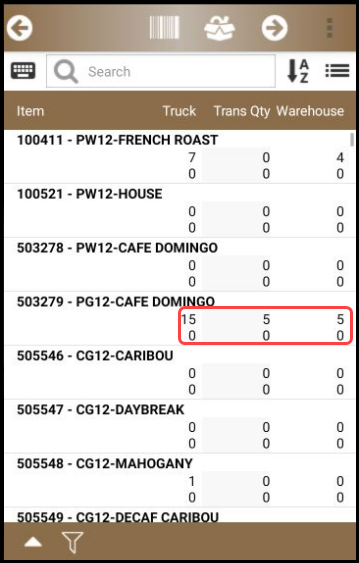
Select the Green checkmark to complete each item as shown below in image 1. Confirm your quantities as shown below in image 2. (Transferring 5 cases to the Warehouse* Inventory).
It will now show that we removed 5 cases from the truck inventory with a total of 15 cases. Trans Qty is stating that we transferred 5 cases. Warehouse now shows it has a total of 5 cases in the inventory in image 2.
Image 1 Image 2
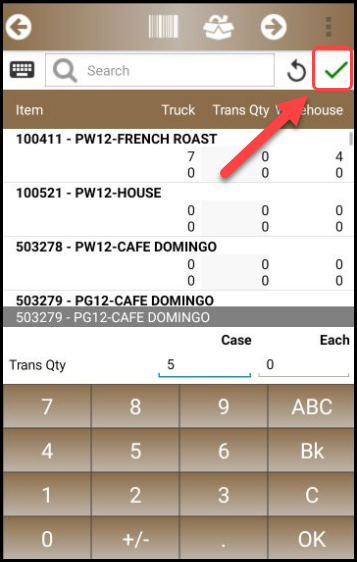
Select the Forward arrow to finalize the inventory transfer.
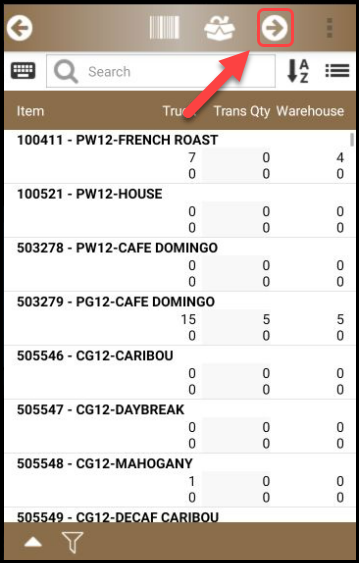
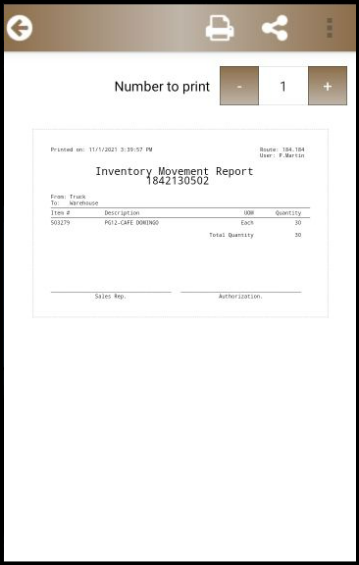
Print the Inventory Movement report for your records. Select the Forward arrow to complete the transaction. (Please note it will take you back to your Truck Inventory screen) Press the back arrow to go back to the Inventory Main Menu
*(Warehouse is defined as your storage unit/individual warehouse)
Comments
0 comments
Article is closed for comments.