


APPLE MOBILE DEVICE
MANAGER MANUAL
PEET’S COFFEE
Kronos Apple Mobile App Timekeeping for Managers
Table of Contents
Section 1 – General Tasks
1.1 – Log in and Navigate
1.2 – Manage RSRs Time Off Request
1.3 – How to Input and Edit Personal Time Off Request
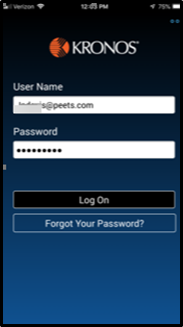
- Enter Server Address “https://peets.kronos.net/wfc”[a]
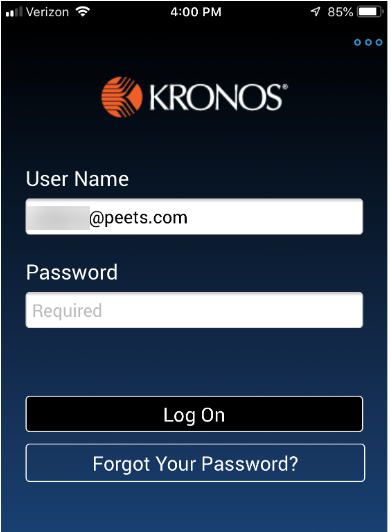
- Sign to Kronos using your Peet’s email address
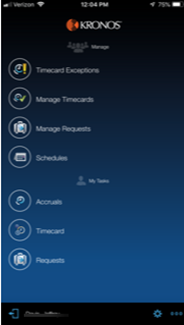
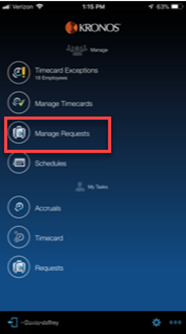
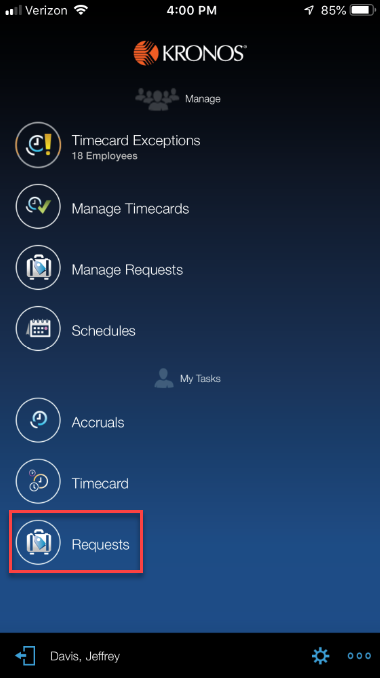
- The Managers home screen displays all the functions available to you
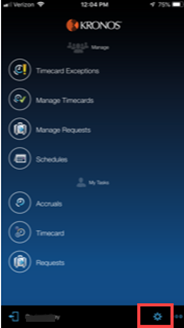
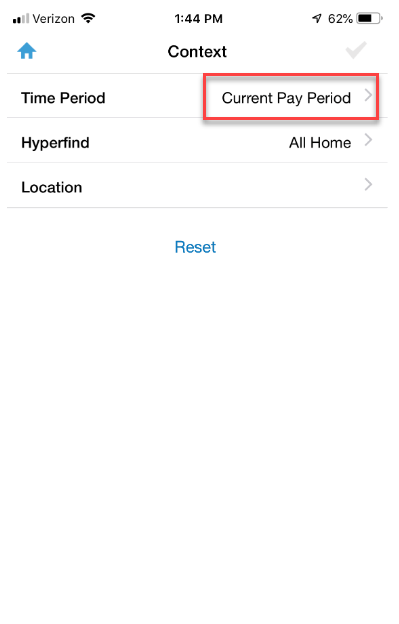
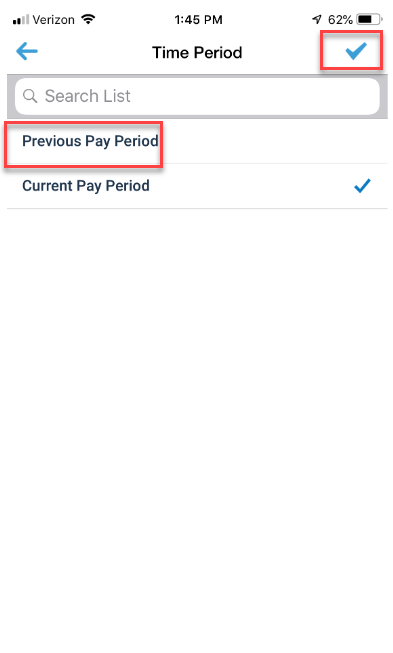
- Tap the Context icon to change the time period of the manage task[b]
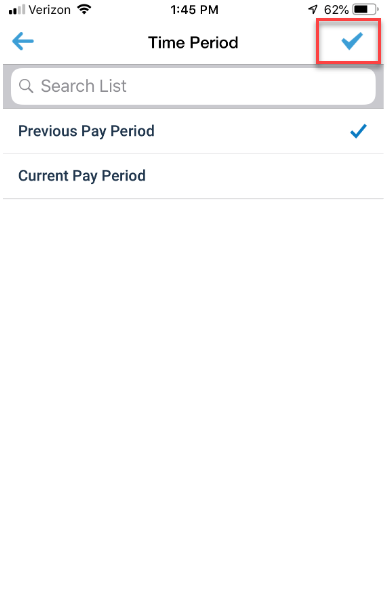
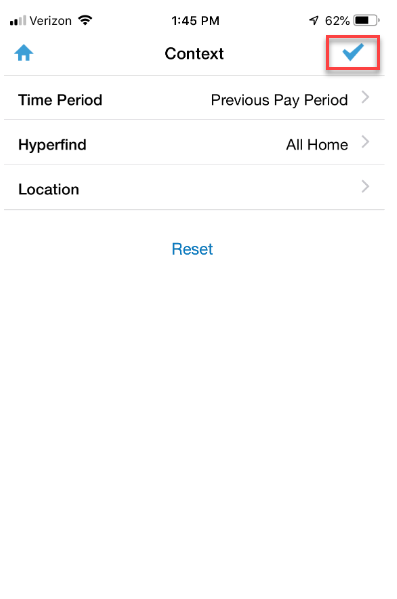
- Once you change the pay period, tap the checkmark then tap the home icon
- Once you have confirmed you are on the correct pay period, tap the checkmark
- Tap the checkmark again to return to the home
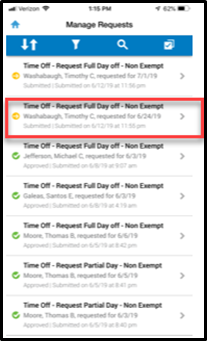
- Tap the Manage Request to display the list of requests
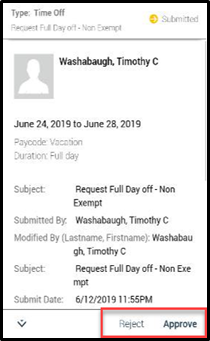
- Tap on the employee’s submitted request to view the details
- For the employee’s request, select either Approve or Reject
- Sign in to Kronos using your Peet’s email address and password
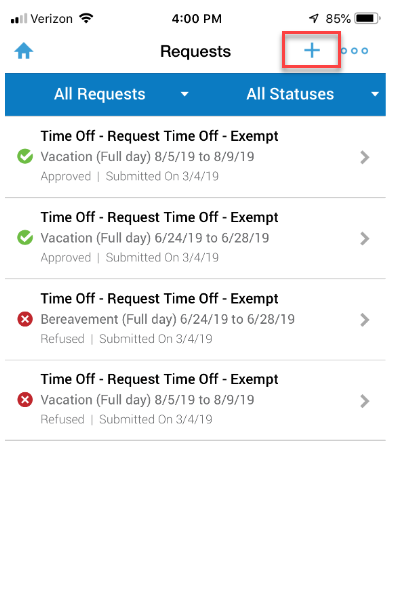
- Tap “Request”
- Tap the Plus sign
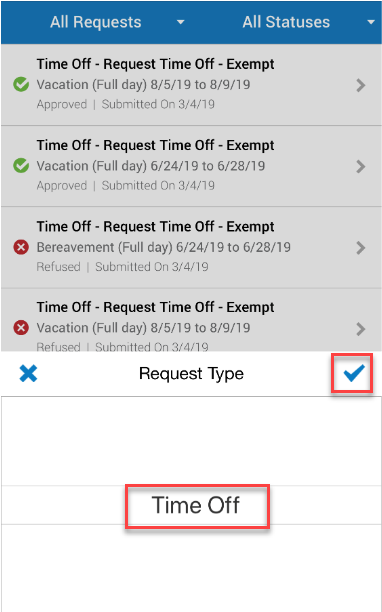
- Request Type should be “Time Off”, then tap the checkmark
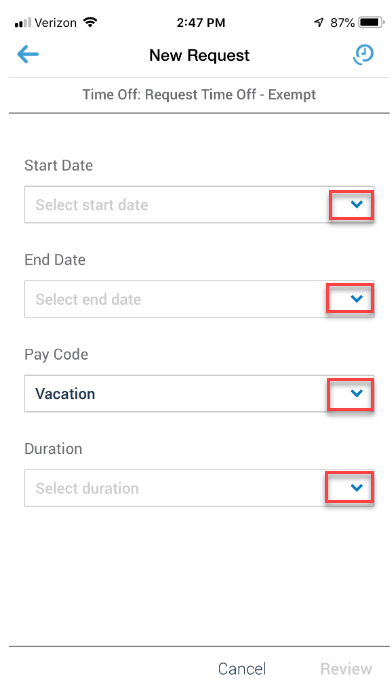
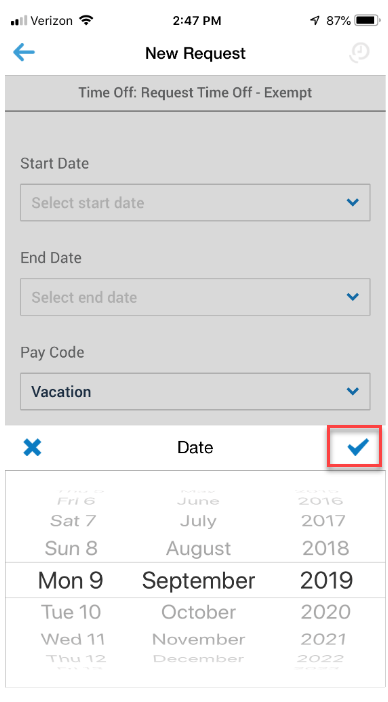
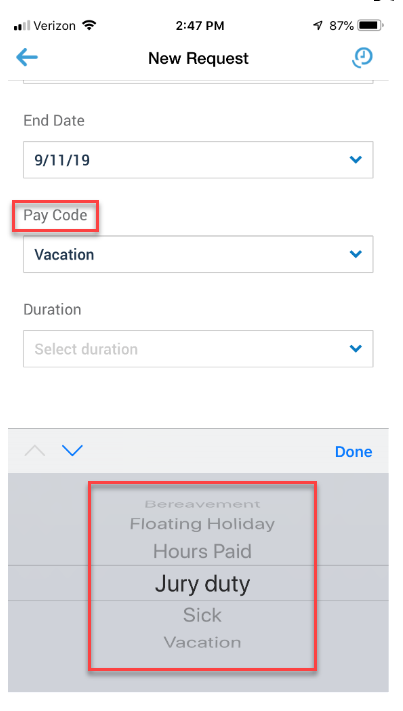
- Under “New Request”, tap the down arrow to choose Start Date, End Date, Pay Code, and Duration. Tap the checkmark after every entry to advance
- Under “Pay Code”, you can choose what type of request you want to make
- Tap “Done”
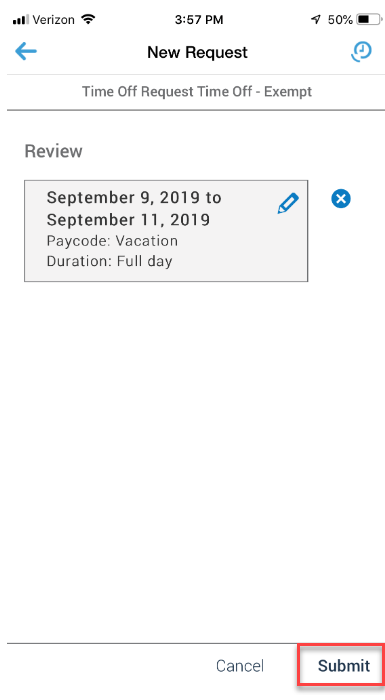
- Tap “Submit”
Revised: July 2019
Comments
0 comments
Please sign in to leave a comment.