
This information guide will show you how to access Microsoft Teams via the Zebra mobile device. This will help show you how to join a team meeting using the Teams application instead of calling in on the mobile number.
- From the main kiosk display on the Zebra handheld scroll down to the bottom of the display
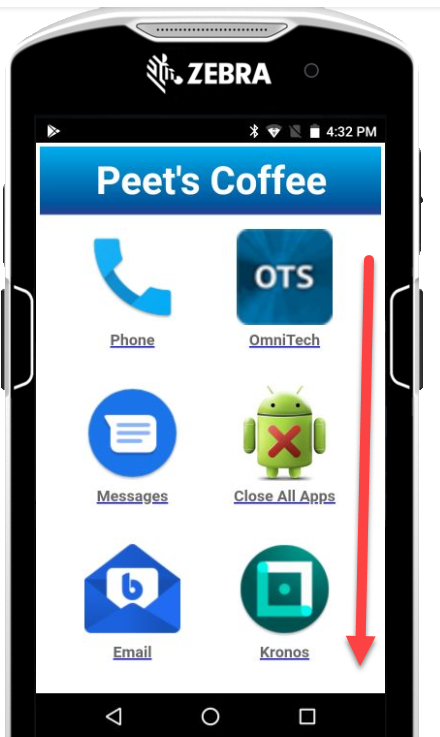
- Select Microsoft Teams by tapping on the Teams icon

- You will be prompted to sign in with your Peet's email address

- Enter your email address and password on the Peet's portal page that is displayed
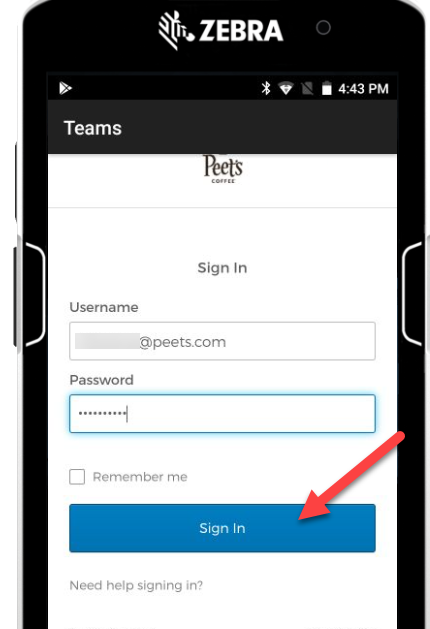
Enter the 6 digit authentication code from Okta Verify or SMS authentication to complete your multifactor authentication login

- Now that you are on Teams you can access multiple options on there like
- Calendar
- Chat
- Calls
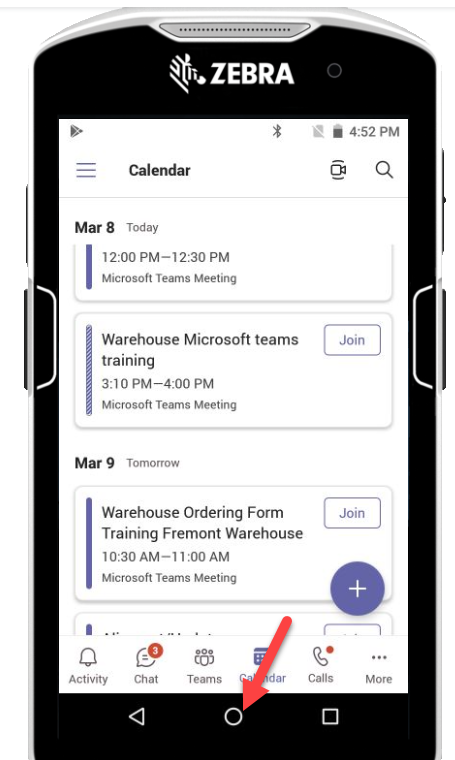
- You will want to select the Calendar option at the bottom to view the meeting

Events on your calendar are displayed. You can select a desired event at the appointed time by clicking Join

For meetings you have the option to join buy clicking Join now
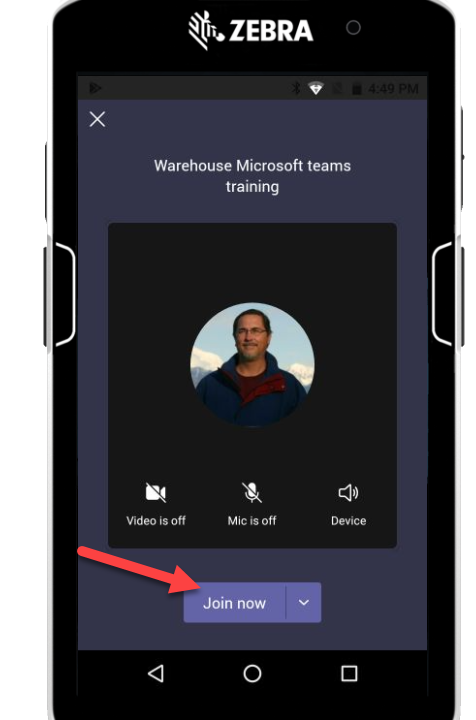
You are in the meeting with options to mute/unmute your mic, view the chat log and the display of participants, etc.

When the meeting is ending you can select the red and white phone icon to exit the meeting

This returns you to the event calendar. You may return to the home screen by pressing the center Circle button at the bottom of the phone

Here is a link to watch a tutorial video. Press Play.
Comments
0 comments
Please sign in to leave a comment.