
How to add a Profile Picture Via Blue Mail Video
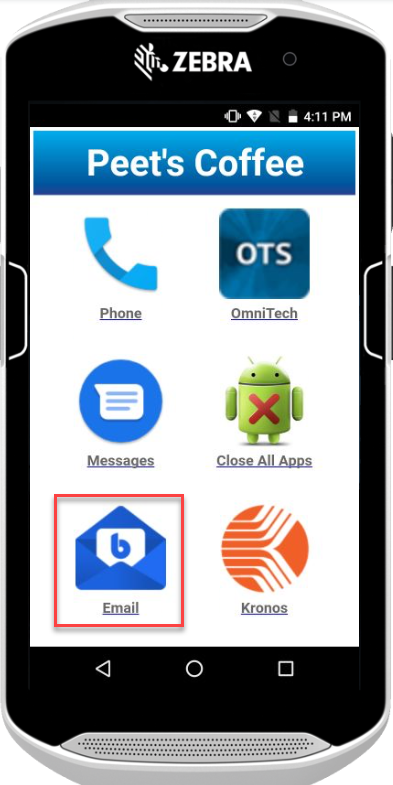
Locate the blue mail app and tap on it:
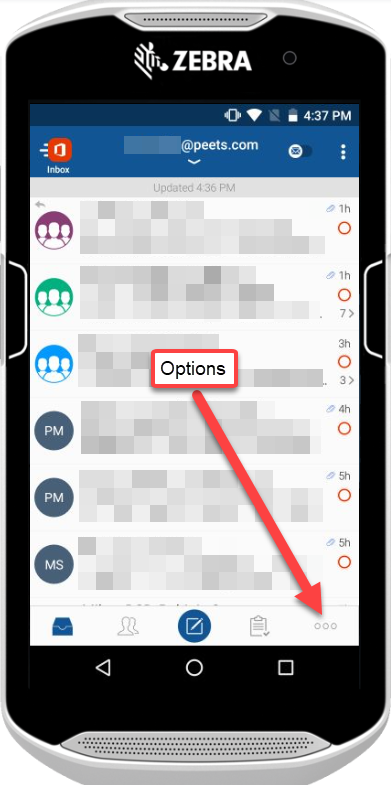
The following screen you will want to locate the options icon and tap on it as shown below:
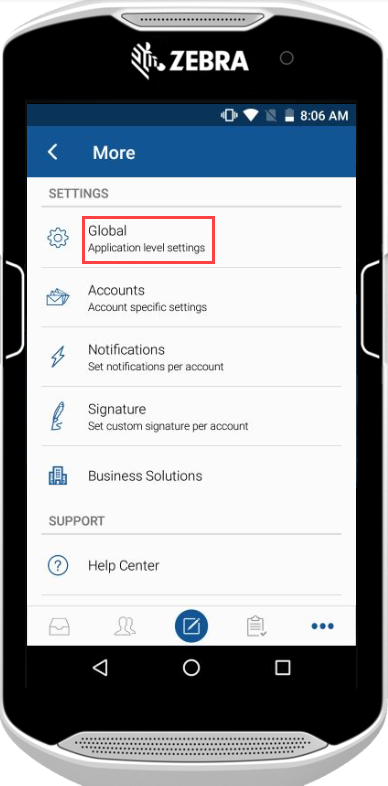
Now tap on Global:
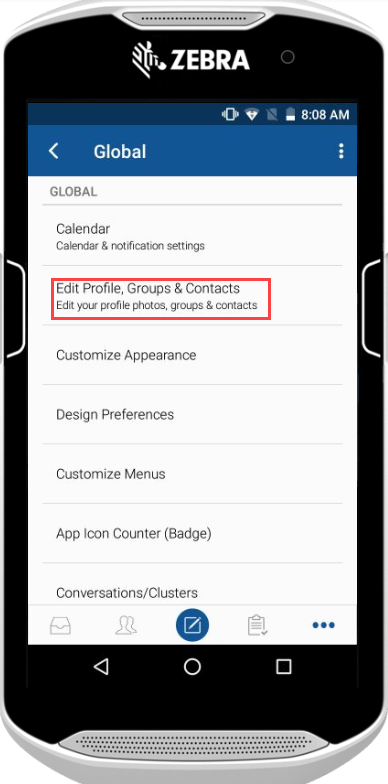
Tap on Edit Profile, Groups & Contacts:
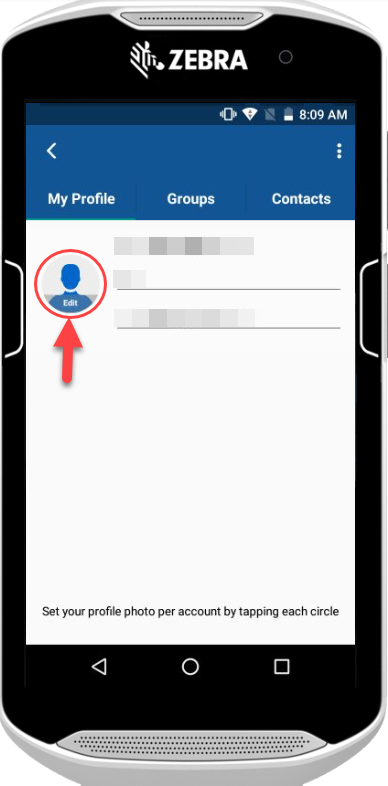
Tap on the circle icon that shows the word edit with in it:
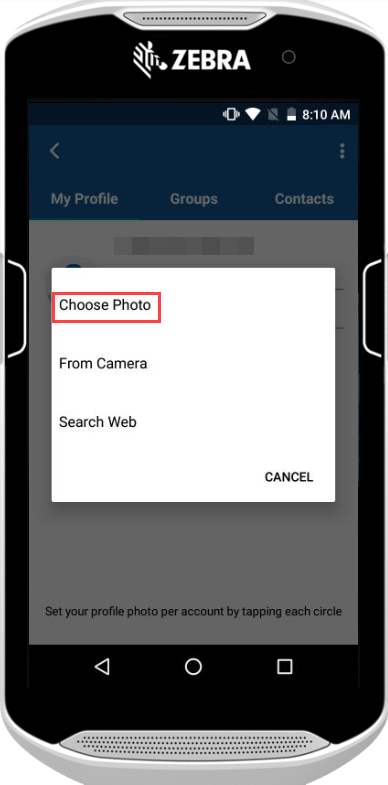
Tap on Choose Photo:
NOTE: You will need to have someone take a photo of you in order for it to show up in the gallery.
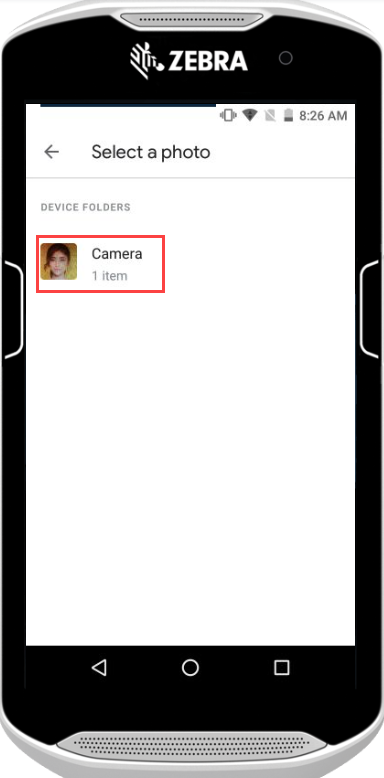
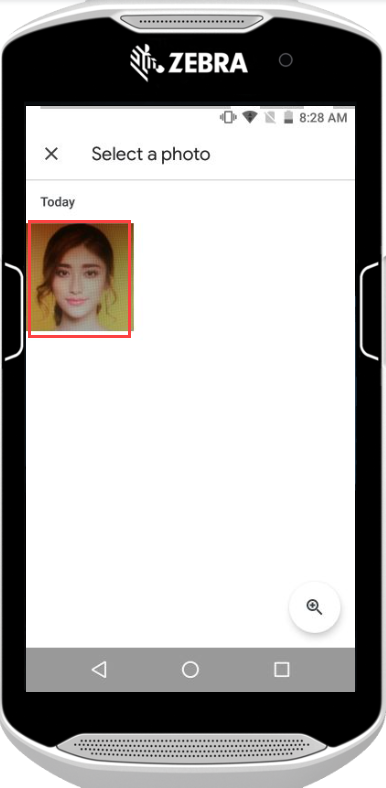
Select a photo of your choice from the list, once you tap on the photo it will go directly into that file then you will need to tap on it again to select it as shown in the second photo below:
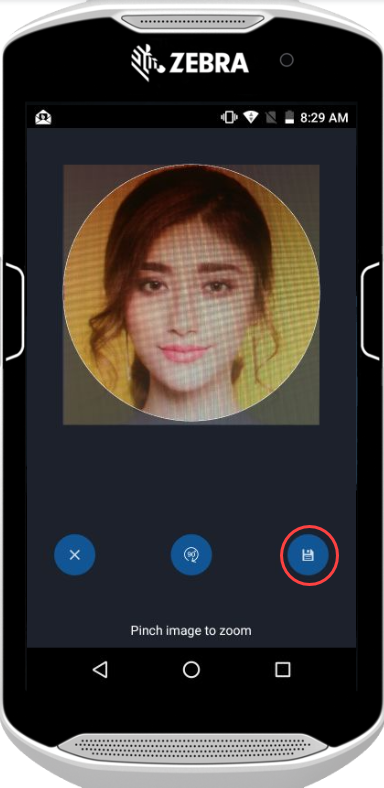
Tap on the save button:
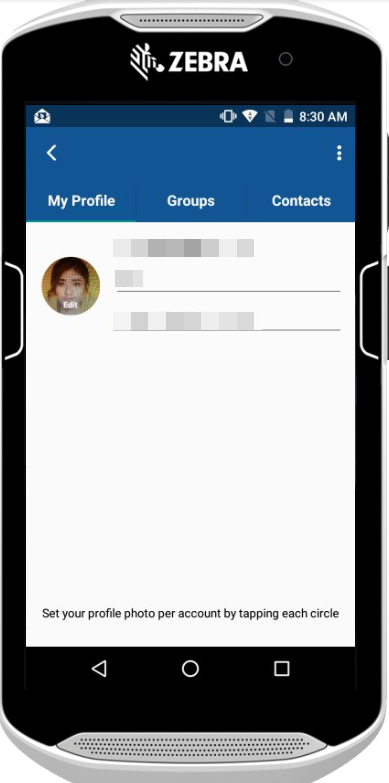
You have successfully uploaded a profile picture:
Comments
0 comments
Please sign in to leave a comment.